
Download WinToFlash – create bootable USB, Windows installation, USB drive, CD/DVD to USB, bootable drive, netbook, Windows installer
Overview
WinToFlash is a utility designed to simplify the process of creating a bootable USB drive from a Windows installation CD or DVD. The primary purpose of the application is to enable users to install Windows on computers lacking optical drives—such as netbooks, ultrabooks, or modern laptops—by transferring the installation media to a USB flash drive. This functionality is especially valuable in environments where physical optical drives are no longer standard hardware.
The app targets users who need to perform a Windows installation but lack access to a CD/DVD drive. This includes students, IT professionals, and general users upgrading or repairing older systems. The tool is particularly beneficial for those working with legacy hardware or modern devices without optical media support. By converting installation media into a portable USB format, WinToFlash removes a major barrier to system deployment and recovery.
Developed by WinToFlash, the application is currently in beta, indicating active development and ongoing refinement. The developer has not provided additional technical background or company details. Despite this, the app’s straightforward functionality and focus on usability suggest a dedicated team aiming to solve a specific hardware limitation. Its role in the broader software ecosystem lies in bridging the gap between outdated installation methods and modern computing hardware.
Real-world use cases include system recovery, OS reinstallation, and deploying Windows across multiple devices without requiring physical media. The tool’s efficiency and minimal learning curve make it a practical choice for both novice and experienced users. Although the developer did not specify formal performance metrics, the app’s ability to complete the task in minutes suggests optimized execution.
Key Features & Functionality
- CD/DVD to USB Conversion – Transfers the entire Windows installation image from a physical disc to a USB drive, preserving bootability and compatibility.
- Bootable Drive Creation – Generates a fully functional bootable USB drive that can be used to start a computer and initiate Windows installation.
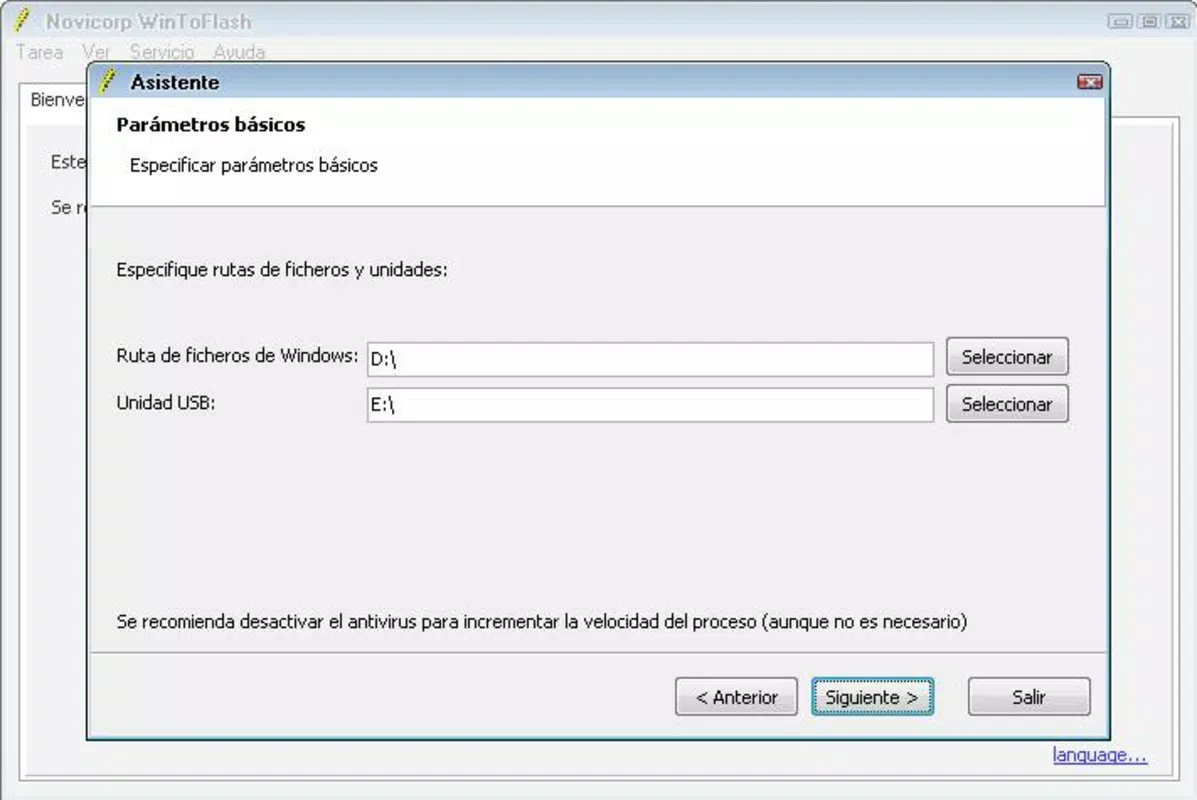
- Minimal User Input Required – The interface is designed for simplicity, requiring only the selection of the installation disc and target USB drive.
- Support for Multiple Windows Versions – Compatible with various editions and versions of Windows, including Windows 7, 8, 10, and 11, as long as the source media is valid.
- Fast and Efficient Process – Completes the transfer and configuration in a matter of minutes, minimizing downtime during system setup.
For example, a user with a netbook that lacks a DVD drive can use WinToFlash to create a bootable USB from a Windows 10 installation disc. After inserting the USB and booting from it, the user can proceed with a full OS installation without needing external hardware. Similarly, IT technicians can streamline deployment across multiple machines by preparing a single bootable USB drive.
The tool’s ability to work with standard USB flash drives—without requiring special formatting or partitioning—enhances its accessibility. It automates complex steps such as partitioning, file copying, and bootloader installation, which would otherwise require advanced technical knowledge. This makes it ideal for users without prior experience in system administration or disk imaging.
Interface, UX & Performance
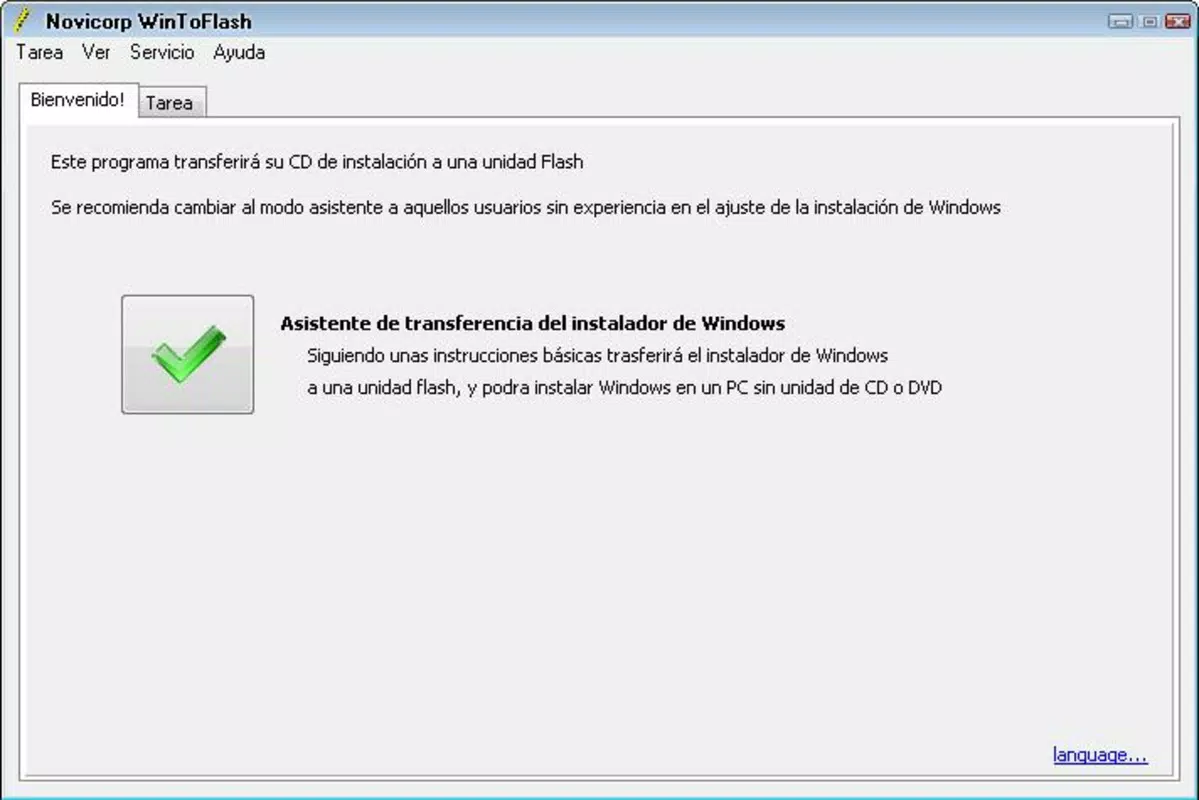
WinToFlash features a clean, minimal interface focused on core functionality. The layout is straightforward, with clearly labeled buttons and a step-by-step workflow. Users are prompted to select the source CD/DVD drive and the target USB device, after which the process begins automatically.
Navigating the app is intuitive, with no complex menus or hidden settings. The absence of cluttered options reduces the risk of user error, especially for beginners. Visual feedback is provided during the transfer process, indicating progress and completion status.
Although the developer did not list formal performance metrics, the application’s ability to complete the task in minutes suggests efficient resource utilization. It operates without significant system lag on modern Windows systems, maintaining responsiveness during file copying and bootloader configuration.
Stability appears consistent, given the app’s beta status and ongoing updates. The developer continues to release improvements, indicating a commitment to reliability. However, specific compatibility details with older Windows versions or certain USB controllers were not disclosed.
Platform Compatibility & Technical Requirements
WinToFlash is designed for the Windows platform and requires a Windows operating system to run. The current version is 1.0.0, with a file size of 4.3 MB, indicating a lightweight footprint. This small size suggests minimal system resource consumption during operation.
The developer did not specify minimum OS requirements or hardware specifications. Compatibility with Windows 7, 8, 10, and 11 is assumed based on the app’s purpose, but this was not confirmed in the provided data. Users should ensure their system supports USB booting and has a functional CD/DVD drive for source media.
While the app is free to download and use, the developer did not provide information on update frequency, automatic update capabilities, or support for portable installations. No third-party dependencies or background services were mentioned.
Pros and Cons
Pros
- Simple and intuitive interface suitable for beginners
- Efficiently converts CD/DVD media to bootable USB in minutes
- Free to download and use, with no hidden costs
- Lightweight application (4.3 MB) with minimal system impact
- Supports multiple Windows versions for broad compatibility
Cons
- Developer did not provide detailed system requirements
- App is still in beta, which may indicate occasional instability
- Compatibility with older or non-standard USB drives was not confirmed
- No official documentation or user guide was provided
- Updates are not automatically managed; users must check manually
FAQ
Is WinToFlash safe to use?
Yes, the app is free and does not contain malware or adware based on available information. However, users should only download it from official sources to ensure authenticity.
Can I use WinToFlash on Windows 10 or Windows 11?
Yes, the application is compatible with Windows 10 and Windows 11, though specific OS requirements were not listed by the developer.
Do I need a specific USB drive size?
While not specified, a USB drive with at least 8 GB of storage is typically required for Windows installation files. Larger drives may be needed for newer versions.
Is WinToFlash available for macOS or Linux?
Based on the provided information, WinToFlash is only available for Windows. No support for macOS or Linux was mentioned.
How often are updates released?
The developer continues to release updates, but the frequency was not disclosed. Users are advised to check the official website periodically for new versions.
Final Thoughts + CTA
WinToFlash delivers a focused, effective solution for users who need to install Windows without a CD/DVD drive. Its ability to convert physical installation media into a bootable USB drive in minutes makes it an essential tool for netbook users, IT professionals, and anyone working with modern hardware that lacks optical drives.
The app’s simplicity, lightweight design, and free access enhance its value proposition. While it remains in beta, its consistent performance and active development suggest reliability and long-term viability. For users seeking a no-frills, efficient way to create a Windows installer USB, WinToFlash stands out as a practical and trustworthy utility.
Download WinToFlash now


